You can grant Veeam Backup for Microsoft 365 permission to send emails on behalf of your Microsoft 365 account. Veeam Backup for Microsoft 365 uses the Microsoft Graph API to send notifications.
1. Login to the Veeam Backup for Microsoft 365 Manager server.
2. Open the Veeam Backup for Microsoft 365 console.
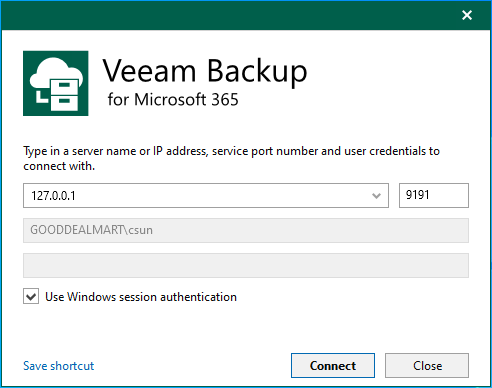
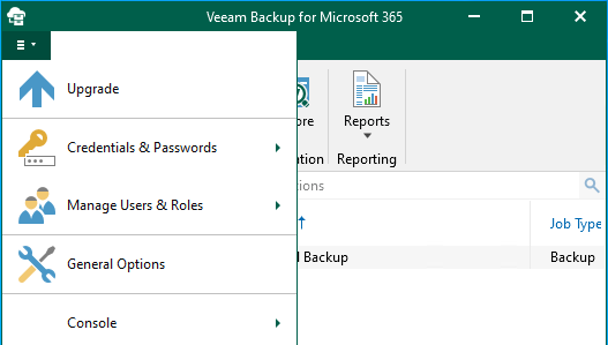
3.On the Veeam Backup for Microsoft 365 console page, click General Options in the main menu.
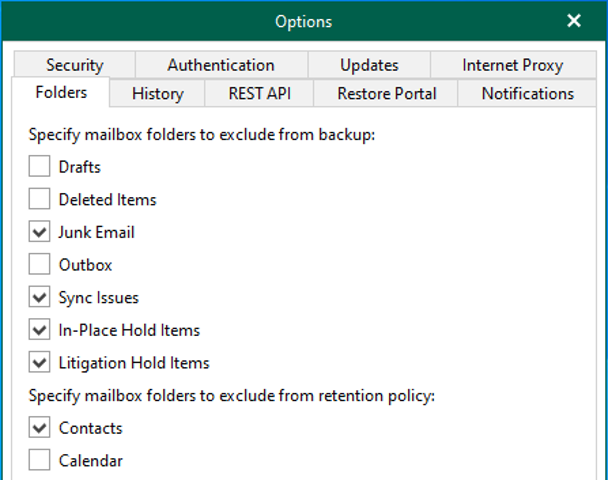
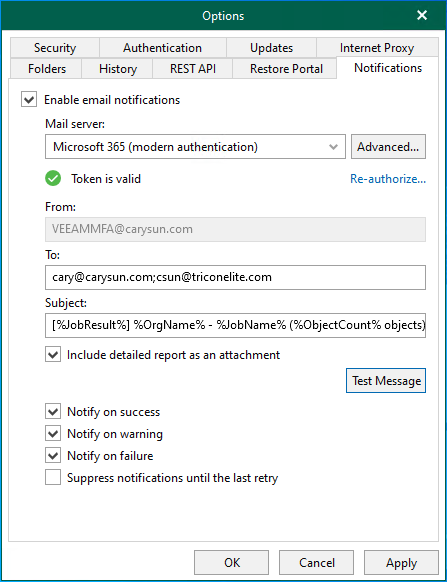
4.Select Notifications on the Options page.
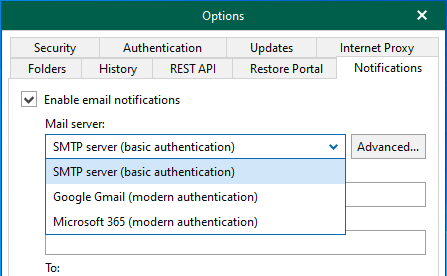
5.Select Enable email notifications on the Notifications page.
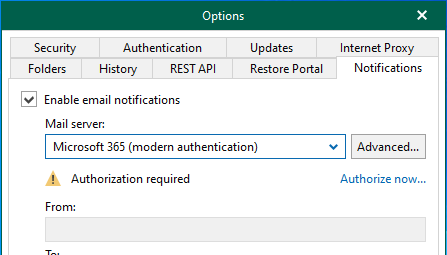
6. Select Microsoft 365 (modern authentication) from the Mail server drop-down list.
7. Click Authorize now on the Authentication required.
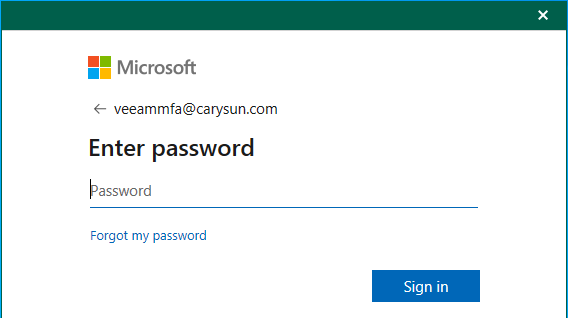
8. Enter the credentials of your Microsoft 365 account to complete authentication.
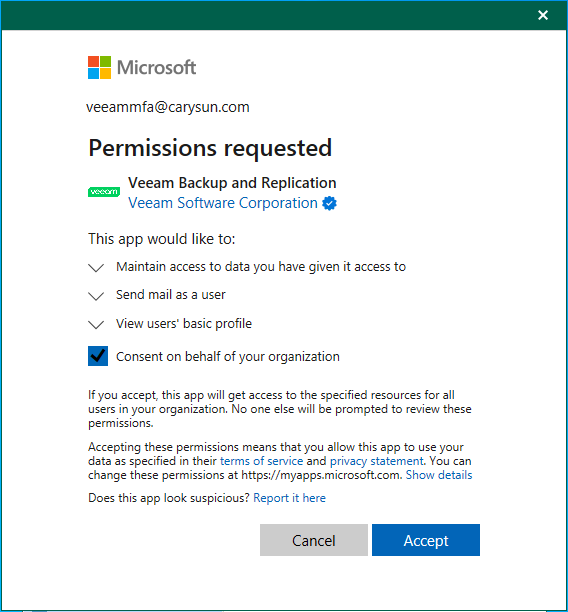
9. Select Consent on behalf of your organization and click Accept on the Permissions requested page.
10. Enter the email addresses you want in the notification list in the To field.
11. Click Test Message.
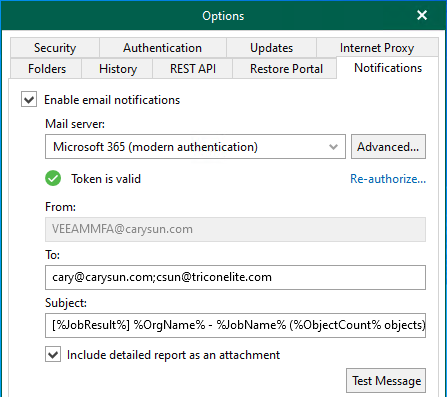
12. Ensure the test email was successfully sent to recipients. Click OK.
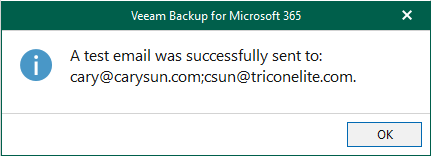
13. Click OK on the Options page.
I hope you enjoy this post.
Cary Sun
X: @SifuSun
Web Site: carysun.com
Blog Site: checkyourlogs.net
Blog Site: gooddealmart.com
Amazon Author: Amazon.com/author/carysun
About Post Author

Cary Sun has a wealth of knowledge and expertise in data center and deployment solutions. As a Principal Consultant, he likely works closely with clients to help them design, implement, and manage their data center infrastructure and deployment strategies. With his background in data center solutions, Cary Sun may have experience in server and storage virtualization, network design and optimization, backup and disaster recovery planning, and security and compliance management. He holds CISCO CERTIFIED INTERNETWORK EXPERT (CCIE No.4531) from 1999. Cary is also a Microsoft Most Valuable Professional (MVP), Microsoft Azure MVP, Veeam Vanguard and Cisco Champion. He is a published author with several titles, including blogs on Checkyourlogs.net, and the author of many books. Cary is a very active blogger at checkyourlogs.net and is permanently available online for questions from the community. His passion for technology is contagious, improving everyone around him at what they do. Blog site: https://www.checkyourlogs.net Web site: https://newcarysun-dacvdccdesfnhnfh.canadacentral-01.azurewebsites.net Blog site: https://gooddealmart.com Twitter: @SifuSun in: https://www.linkedin.com/in/sifusun/ Amazon Author: https://Amazon.com/author/carysun