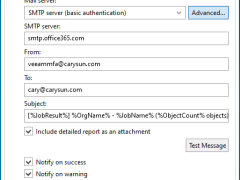
You can configure Microsoft 365 with an MFA-enabled account for notification settings. This can be used to send email notifications about backup job results.
Veeam Backup for Microsoft 365 uses the Veeam Azure archiver appliance, a small virtual machine deployed in Azure, to efficiently move backed-up M365 data (Exchange, SharePoint, Teams, OneDrive) into Azure Archive Storage (cold tier) for long-term, low-cost retention, minimizing data egress and speeding up copy jobs by processing data locally within Azure.
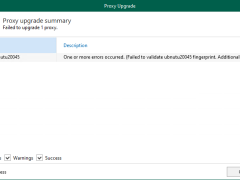
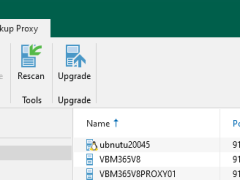
The upgrade failed because the SSH public key fingerprint of the Linux proxy does not match Veeam’s expectations. This typically happens when the proxy’s SSH keys are changed, the server is rebuilt, or the fingerprint stored in Veeam is outdated.
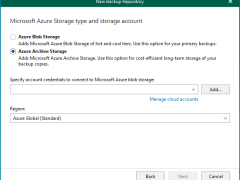
In Veeam Backup for Microsoft 365 version 8.2, adding a Microsoft Azure Archive Storage repository involves a multi-step wizard within the Backup Infrastructure view. This repository type is specifically designed for long-term retention and supports Backup Copy jobs.
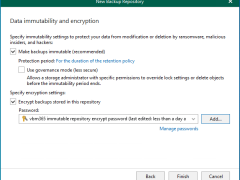
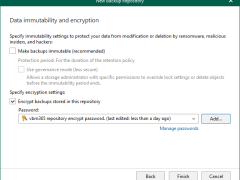
Integrating Microsoft Azure Blob Storage repositories with immutability requires configuring both the Azure storage account and Veeam Backup for Microsoft 365 to leverage Azure’s immutable storage capabilities.
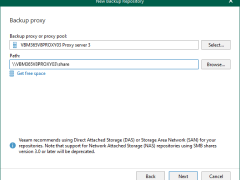
Network Attached Storage can also be used with Veeam Backup for Microsoft 365 as a backup repository. These Network Attached Storage devices can be accessed and configured via a shared folder on your computer or any other physical device accessed using the SMB protocol.
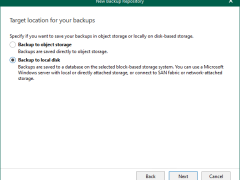
To add a local directory or Direct Attached Storage (DAS) as a backup repository in Veeam Backup for Microsoft 365, you need to use the Veeam Backup for Microsoft 365 console and select the server hosting the storage as a backup proxy.
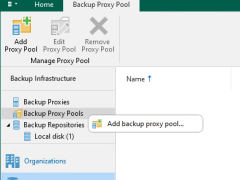
Version 8 of Veeam Backup for Microsoft 365 introduced proxy pools to improve performance and scalability in large installations. By logically combining several backup proxies, a proxy pool enables dynamic load distribution of backup and restore traffic, removing bottlenecks and accelerating processes.
Veeam Backup for Microsoft 365 consists of Backup proxy servers, Backup Proxy Pools, Backup Local repositories, and Object storage repositories. These are configured as locations for Microsoft 365 backup data. These can be configured on-premises, in the cloud, or in a hybrid configuration.
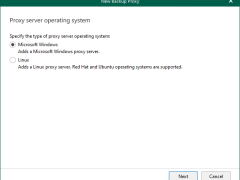
Windows Backup proxy servers are auxiliary servers that you can configure to improve performance, scalability, and flexibility.
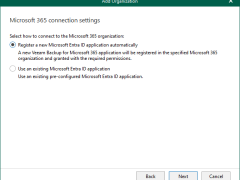
Registering a new Microsoft Entra ID application automatically is unavailable if you want to back up team chats and have selected Team chats at the Organization Deployment Type step.
Veeam released a version of Veeam Backup for Microsoft 365 v8.2.0.2202 (P20251031) on November 06, 2025, and it resolved the issue – A backup job may fail when processing Archive Mailbox objects with the following error:
Processing archive mailbox: username@organization.com failed with error: Mailbox is not fully configured.
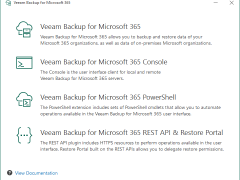
There are benefits such as enhanced scalability, flexibility, and security when a restore portal and a REST API are installed on a separate computer. This architecture increases the total performance and dependability of the system by enabling autonomous development, scaling, and maintenance of each component.
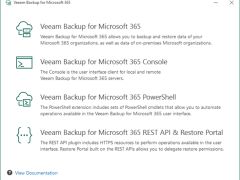
When you install Veeam Backup for Microsoft 365, the PowerShell Toolkit is automatically installed on the backup server. If you want to run Veeam Backup for Microsoft 365 PowerShell sessions on remotely, you can install the PowerShell Toolkit on a dedicated machine.
When you install Veeam Backup for Microsoft 365, its console is automatically installed on the backup server. If you want to access Veeam Backup for Microsoft 365 remotely, you can install the Veeam Backup for Microsoft 365 console on a dedicated machine. You can install as many remote consoles as you need.
Veeam Backup for Microsoft 365 is a complete solution that lets you backup and restore data from your Microsoft 365 organizations, including those that use Microsoft Teams, Microsoft Exchange, Microsoft SharePoint, Microsoft OneDrive for Business, and on-premises Microsoft SharePoint.