How to move failover clusters on the same hardware to another domain
How to move failover clusters on the same hardware to another domain

How to move failover clusters on the same hardware to another domain
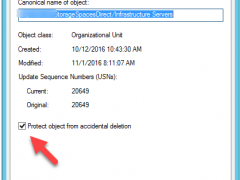
Today, I am going to show you how to delete a protected OU of Active Directory.
Please on hold to install patches for servers, there are lots of issues happened after install patches, the detail as following information.
Patch Tuesday Megathread (2022-01-12) : sysadmin (reddit.com)
Please wait up to 1 week prior to touching these updates on servers or at least TAKE A BACKUP PRIOR to ANY PATCHING.
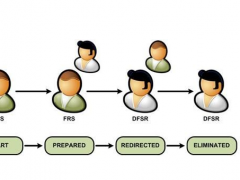
If you are trying to promo windows server 2019 as domain controller, it happened “Verification of replica failed. The specified domain {Domain-Name} is still using the File Replication Service (FRS) to replicate the SYSVOL share. FRS is depreciated.” Error, this is because Windows Server version 1709 (or after version) can no longer be added as an Active Directory domain controller (DC) to an existing domain that is still using File Replication Service (FRS) for replication of the SYSVOL share.
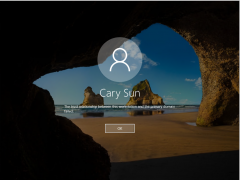
If you tried to restore VMs (or physical machines) and it shows the trust relationship between this workstation and the primary domain failed, I won’t recommend using rejoin domain to solve issues, because it will happen unexpected issues after disjoin and rejoin domain.
Today, I am going to show you how to fix it without disjoin and rejoin domain.
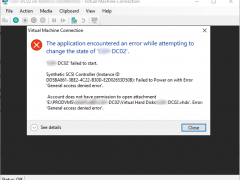
If you try to start a Hyper-V VM but failed, the error message shows Account does not have permission to open attachment VHDX General access denied error, don’t panic, today I am going to show you how to fix it.
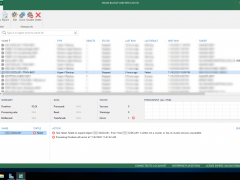
Today I am going to show you how to fix Veeam backup failed and showed host is either not a cluster or has its cluster services unavailable error message.
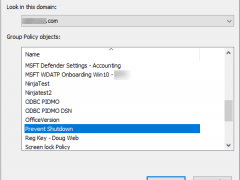
Today, I am going to show you how to use Group Policy to disable or prevent Shutdown option.
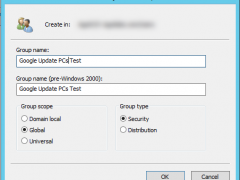
Are the domain users using Google chrome? Do they update their Google chrome? Today, I am going to show you how to use group policy to manage Google chrome auto update.
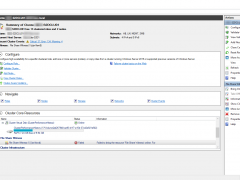
I notice the storage space direct cluster file share witness failed for some reasons today, but when I check the file share permissions, everything looks good. It looks a bug but not sure.
I am going to show you how to fix this issue.
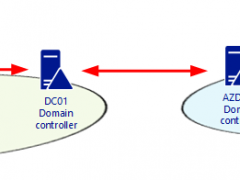
Today, I deploy a new domain controller server at Azure after site to site VPN built. Verify the replication status looks fine, but when I check the SYSVOL and LOGON shares folders status, I noticed there is no any shared folder at the new domain controller server.

Today, I am going to show you how to step by step transfer FSMO roles to new domain controller server, and transfer time server role from the old domain controller to new domain controller.
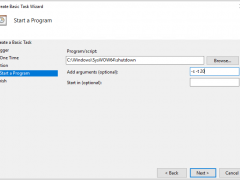
Today, I ma going to show you how to use task scheduler to schedule auto shutdown or reboot server.
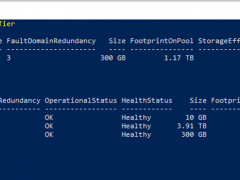
Today, I am going to show you how to Extend Volumes in Storage Space Direct Cluster
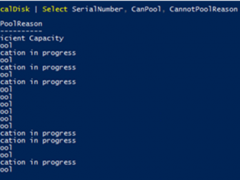
Today, when I try to replace the physical hard drives for the S2D e nodes Cluster, the Physical Disks show Verification in progress Error at CannotPoolReason.
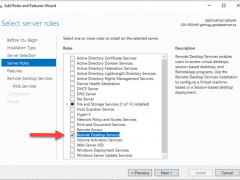
Today, I am going to show you how to deploy simple Remote Desktop Gateway on the Microsoft Windows Server 2019 without complete Remote Desktop Services Infrastructure. It means I don’t have a farm of RD session host servers sitting behind and I don’t want to deploy Connection broker, web access and session host server (e.g. complete infrastructure).
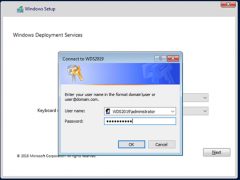
If you would like to deploy OS to the New rack Server or PC but they have no DVD (virtual DVD), WDS (Windows Deployment Services) server is your good friend, you can easy to deployment via network (PXE).
Today, I am going to show you step by step to install and configure WDS server. you don’t need a new hardware for it, you can build WDS server as a VM of exiting Windows 10 laptop or Server.
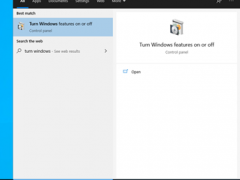
As we know, Microsoft Server 2019 has lot of features improved, also you may need a pilot test environment to test it with applications but don’t want to impact product. Don’t worry, today, I am going to show you how to create a Windows Server 2019 virtual machine at the Windows 10 laptop.
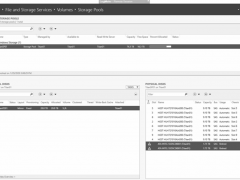
was doing daily checking for servers as usual. There are two SSD drives happen lost communication at Storage Space Direct Server, this is not good, because those two SSD drives are the cache of Storage Space Direct.

Today, I am going to show you how to configure Server Certificate Auto-enrollment via Group Policy, you need to have an Enterprise certification authority root server before you configure auto-enrollment, if you don’t know how to install Enterprise certification authority root server, you can follow my previously post and step by step to install it.